- Click here for all ASP.NET Interview Questions
- C# Interview Questions related to Interfaces
- C# Interview Questions on partial classes, structs and methods.
- C# Interview Questions on Nested Types
- Destructors related C# Interview Questions
- C# Interview Questions on constructors
- C# Interview Questions on Methods / Functions
- C# Interview Questions on Properties
- C# Interview Questions on Constants
- C# Interview Questions on Fields
- C# Interview Questions on Access Modifiers
- Why should you override the ToString() method
- C# Interview Questions on polymorphism
- C# Interview Questions on Abstract and Sealed Class Members
- C# Interview Questions on Inheritance
- C# Interview Questions on structs
- Basic C# Interview Questions on classes and structs
- C# Interview Questions on Data Types
- C# Interview Questions on value types and reference types
- C# Interview Questions on data type casting
- C# Interview questions on Boxing and Unboxing
- Basic C# Interview Questions on arrays
- Basic C# Interview Questions on strings
- More C# interview questions on strings
Thursday, July 8, 2010
C# Interview Questions

Friday, March 26, 2010
Loading pages in IFRAME dynamically from codebehind - ASP.NET
Written By : ranganh
Most of us who develop Web Applications would have used an IFRAME during some stage of our lives. IFRAME's are an easy way by which you can embed another page within your original page such that you can show some important information like Stock position/Weather from another site without worrying about the changes happening to that site and updating the same. The Frame can also be used to show another page from your own application.
ASP.NET also provides the option to have an IFRAME in our ASPX Pages. It can be with/without the "runat=server" attribute and does serve the purpose of embedding the page. The source for the frame can be set as follows:-
<IFRAME id="frame1" src="SourcePage.extension / URL of the external Site" scrolling="auto">
</IFRAME>
However, in practical scenarios, we may want to load the page dynamically. In other words, we may want to specify the "src" attribute (the page which we want to show), dynamically. There is no straight forward way to do that and even if you add a "runat=server" attribute to it (though required in the work around provided below), you cannot access the "src" property directly.
The workaround to do that is as follows:-
1. Specify the "runat=server" attribute as follows in the ASPX Page:-
<IFRAME id="frame1" scrolling="auto" runat="server">
</IFRAME>
2. In the codebehind, you may need to declare a HtmlGenericControl in the control declarations section as follows:-
C#
protected System.Web.UI.HtmlControls.HtmlGenericControl frame1; (not required if working with ASP.NET 2.0, 3.5 i.e. Visual Studio 2005, 2008)
VB.NET
Protected WithEvents frame1 As System.Web.UI.HtmlControls.HtmlGenericControl(not required if working with ASP.NET 2.0, 3.5 i.e. Visual Studio 2005, 2008)
3. Then, you need to do a findcontrol to identify the control on the page and typecast it as follows:-
C#
HtmlControl frame1 = (HtmlControl)this.FindControl("frame1"); (not required if working with ASP.NET 2.0, 3.5 i.e. Visual Studio 2005, 2008)
VB.NET
Dim frame1 As HtmlControl = CType(Me.FindControl("frame1"), HtmlControl) (not required if working with ASP.NET 2.0, 3.5 i.e. Visual Studio 2005, 2008)
Note: You can have different name for the Generic Control you define in the code behind, but for ease I keep both the same. The "frame1" referred in Find Control is the ID as declared in the ASPX Page.
4. Thereafter, you will be able to access the src property as follows:-
C#
frame1.Attributes["src"] = "http://www.live.com" ;
VB.NET frame1.Attributes("src") = "http://www.live.com" ; NOTE: Thanks PhOeNiX for providing the VB.NET equivalent. I have added the same now.
This serves the purpose of dynamically loading the page in the IFRAME.
A related article on Triggering an event in the Parent Page from within Page inside IFRAME
Cheers !!!
Sunday, February 28, 2010
INSTALLING ORACLE 10G – STEP BY STEP GUIDE
Written By: ProgrammerWorld
Introduction:
This article is a step-by-step instruction for those who want to install Oracle 10g database on their computer. This document provides guidelines to install Oracle 10g database on Microsoft Windows environment. If you use other operating system other than Microsoft Windows, the process is not too much different from that of Microsoft Windows, since Oracle uses Oracle Universal Installer to install its software.
For more information about installing Oracle 10g under operating systems other than Microsoft Windows, please refer to this URL :
http://www.oracle.com/pls/db102/homepage
How to get Oracle 10g :
You can download Oracle 10g database from www.oracle.com. You must registered and create an account before you can download the software. The example in this document uses Oracle Database 10g Release 2 (10.2.0.1.0) for Microsoft Windows.
How to uninstall Oracle database software :
- Uninstall all Oracle components using the Oracle Universal Installer (OUI).
- Run regedit.exe and delete the HKEY_LOCAL_MACHINE/ SOFTWARE/ORACLE key. This contains registry entire for all Oracle products.
- Delete any references to Oracle services left behind in the following part of the registry: HKEY LOCAL MACHINE/ SYSTEM/ CurrentControlsSet/ Services/Ora*. It should be pretty obvious which ones relate to Oracle
- Reboot your machine.
- Delete the C: \Oracle directory, or whatever directory is your Oracle_Base.
- Delete the C:\Program Files \Oracle directory.
- Empty the contents of your c:\temp directory.
- Empty your recycle bin.
Installing Oracle 10g database software :
- Insert Oracle CD , the autorun window opens automatically. If you are installing from network or hard disk, click setup.exe in the installation folder.
- The Oracle Universal Installer (OUI) will run and display the Select Installation MethodWindow.
- Choose Basic Installation:
Select this option to quickly install Oracle Database 10g. This method requires minimal user input. It installs the software and optionally creates a general-purpose database based on the information you provide.
For basic installation, you specify the following:
Oracle Home Location — Enter the directory in which to install the Oracle Database 10g software. You must specify a new Oracle home directory for each new installation of Oracle Database 10g. Use the default value, which is :c:\oracle\product\10.2.0\db_1
Installation Type — Select Enterprise Edition :
If you have limited space, select standard edition. Personal edition installs the same software as the Enterprise Edition, but supports only a single-user development and deployment environment.
Create Starter Database — Check this box to create a database during installation. Oracle recommends that you create a starter database for first Create Starter Database — time installations. Choose a Global Database Name, like cs157b, or just use the default value.
Type a password. Don’t lose this password, since you will need it to connect to the database server.
Click next - The Product-Specific Prerequisite Checks window appears: Click next
- A summary screen appears showing information such as your global settings, space requirements and the new products to be installed. Click Install to start the installation..
- The Install window appears showing installation progress.
- At the end of the installation phase, the Configuration Assistants window appears. This window lists the configuration assistants that are started automatically.
If you are creating a database, then the Database Configuration Assistant starts automatically in a separate window.
At the end of database creation, you are prompted to unlock user accounts to make the accounts accessible. The SYS and SYSTEM accounts are already unlocked. Click OK to bypass password management.
Note: Oracle 10g still keeps scott / tiger username and password (UID=scott, PWD=tiger) from the old version of oracle. In the old version of oracle, scott/tiger user ID is available by default, but not in oracle 10g. If you want to use scott /tiger account, you must unlock it by clicking “Password Management” at the last window.
Password Management window will appear like the one shown below. Find the user name “Scott” and uncheck the “Lock Account?” column for the user name. - Your installation and database creation is now complete. The End of Installation window displays several important URLs, one of which is for Enterprise Manager.
- You can navigate to this URL in your browser and log in as the SYS user with the associated password, and connect as SYSDBA. You use Enterprise Manager to perform common database administration tasks
Note : you can access Oracle Enterprise Manager using browser by typing the URL shown above in your browser. Instead of typing the IP address, you can also access the Enterprise Manager by typing http://localhost:1158/em or “http://[yourComputerName]:1158/em” or by clicking “Start >> All Programs >> Oracle – [YourOracleHome_home1] >> Database Control – [yourOracleID]” in Windows menu.
By default, use user ID “SYSTEM”, with the password that you have chosen at the beginning of installation, to connect to database, SQLPlus, etc. If you want to use other user ID, you may create a new user .


Tuesday, February 2, 2010
Case Studies: Social Networking Sites In Your Business
Case Study: Social Media in Recruitment (Ernst &Young).pdf
Case Study: Increase sales through social media (First Choice Holidays).pdf

I had research on how Social Networking Sites can grow your business?, Why giant companies specially focus on and even start campaigns on these social networking sites? So here are some case studies I wana share to show how these sites can helps you....
It's amazing just how much the web has changed in the past ten years. Web trends such as Web 2.0, Enterprise 2.0 and Cloud Computing have revolutionized the way we use the Internet, turning it from a service that we use to extract information into a central part of our daily lives. We use it to keep up with our friends and family, store our vacation photos, make cheap long distance phone calls, watch feature-length movies, play inside of virtual worlds and even carry it around with us in our pocket when we are on the go.
Source: About.com, scribd.com
Monday, February 1, 2010
How to Install Virtual Machine Additions for Virtual PC & Shared Folder
Written by Gil in How-to's

Virtual Machine Additions allow you to extend the capability of Microsoft’s Virtual PC software, however installing these additions can be a little confusing so I decided to post the instructions to install the Virtual Machine Additions for reference. If you have any comments or questions, please post them below.
Note: I used Virtual PC 2007 on Windows Vista.

- While you are running one of your virtual pcs’, click on Action > Install or Update Virtual Machine Additions (or hit Right Alt + I)

- You will be prompted with the dialog box above which states that a CD image will be inserted in the Virtual Drive, the CD-ROM contains the installation files for the Virtual Machine Additions. ClickContinue so that the CD-ROM is loaded.

- The installation will be started in your Virtual PC, click Next to proceed.

The additions install…

- Once setup is complete, click Finish.

- Click Yes to restart your Virtual Machine.
Features Available
Improved mouse cursor tracking and control

Greatly improved overall performance
Virtual machine heartbeat generator
Optional time synchronization with the clock of the physical computer
Folder sharing between host and guest operating system

More information on Virtual Machine Additions can be found on Microsoft’s Technet website
Connect Virtual PC to Internet
Written By Clayton James (CJ)
1/ Navigate to your physical network adapter that you want your VPC to use and click the Install button
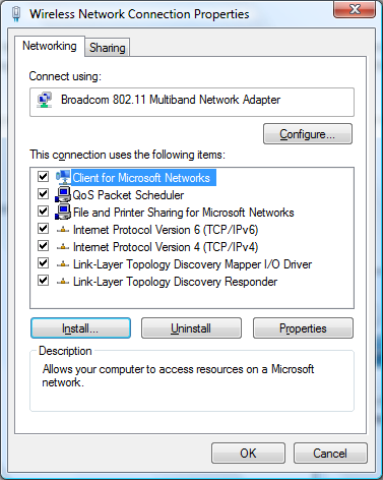
2/ Highlight Service and click Add

3/ If you don’t see the Virtual Machine Network Service click Have Disk button (mine displays as I had already added it).

4/ Navigate to the following directory: C:\Program Files\Microsoft Virtual PC\Utility\VMNetSrv and select the VMNetSrv.inf file and Ok your way back out.

5/ This should install the service and you should now see the service in your connection properties

6/ In your VPC make sure you set your network adapter to the adapter that you just installed the Virtual Machine Network Service

7/ Internet connection from VPC :)

Here is a good blog post for a couple of other issues if Virtual Machine Network Service is installed but you still can’t get network connectivity.
Another good article by Microsoft explaining the virtual machine network settings.
Saturday, January 16, 2010
RCBA Final Presentation (With Video)
Download: FYP Final Presentation With Videos.rar

Sir Syed University of Engineering & Technology
Hi guys! I have uploaded this post for sharing and presenting our project RCBA as sample. If you guys(SSUETian) need any help I welcome you guys. Lolz! i look a “shareef child” / “Shareef bacha” in this presentation. :)
HAPPY SAMPLE NOW! ;)
Note: .rar file include interesting Video files which linked with .pptx
Subscribe to:
Comments (Atom)